Missing App Menu Buttons
The menu buttons shown in this guide's pictures may look different from what's on your screen. This is because they can appear smaller, or grouped together, depending on the size of your program window. Most pictures in this guide show the program at full-screen, so they show every button on its own.
Window is full size (maximized): you will see every button on its own.
Window is a normal, smaller size: some buttons are grouped together under one button. Look for a small arrow ▾ next to the button name — that means more buttons are hiding inside. Click it to see them.
For example, on the Markup tab you will normally see five separate buttons: Area Highlight, TypeWriter, Pencil, Attachment, and Add Note. If your window isn't maximized, all five are grouped under one button called Document Markup. Click it, then click TypeWriter (or whichever button you need) from the list that opens.
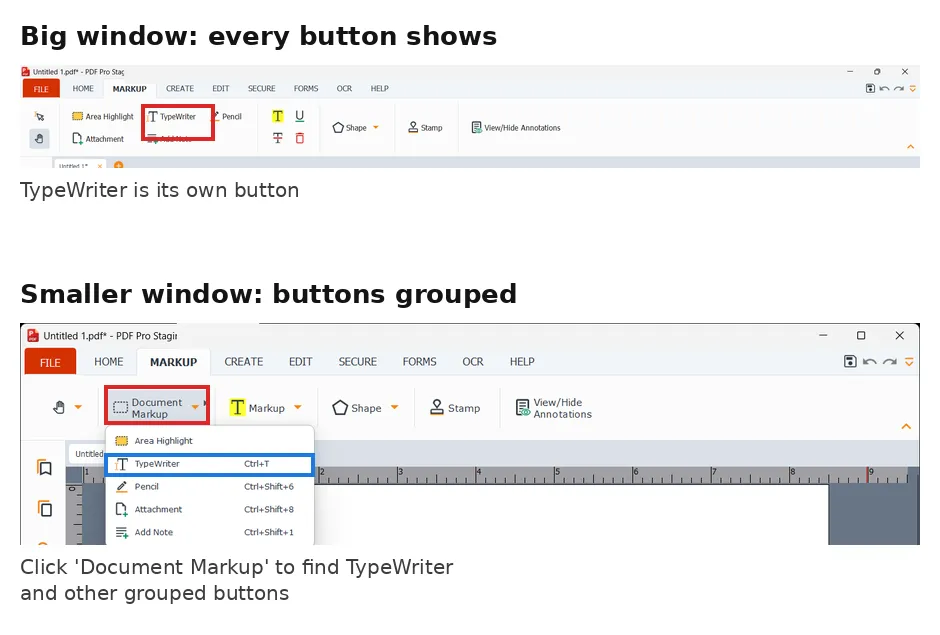
How to find a button in this guide:
- Go to the tab this guide tells you to use, like Markup.
- Look for the button by name.
- Can't find it? Look for a button with a small arrow ▾ next to it, like Document Markup. Click it to open the list.
- Click the button you need from the list.
Tip: make your program window bigger (maximize it) and every button will show on its own, just like in the pictures in this guide.
This guide will always tell you which button to click, like "click typewriter." If you can't find it right away, look for a button with an arrow ▾ next to it.