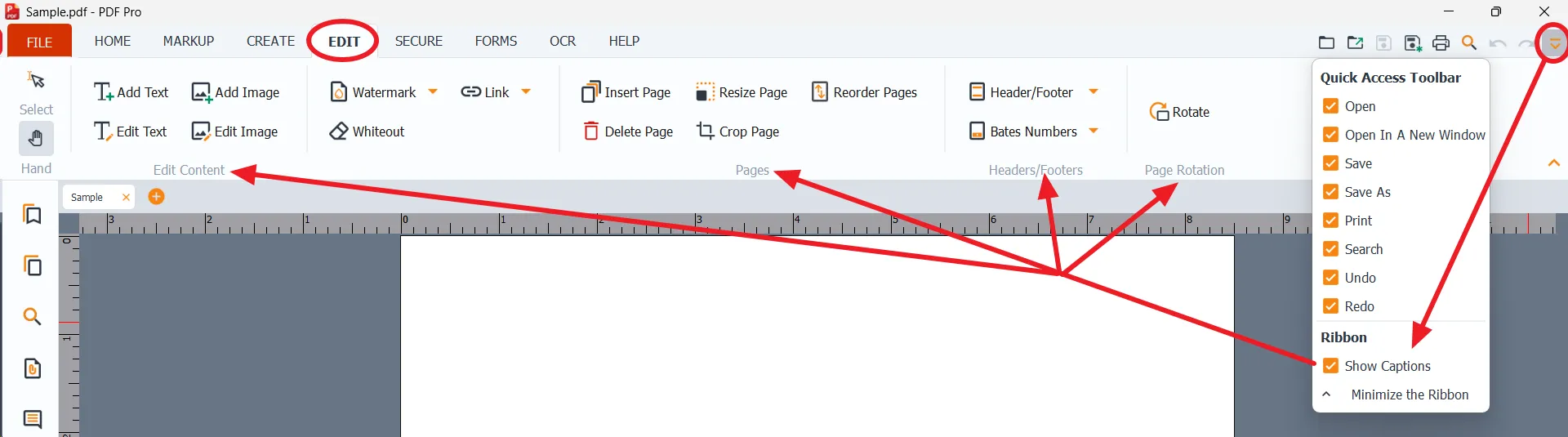
The EDIT tab at a glance
2 min
The EDIT tab holds the tools for changing the content and pages of a PDF.
EDIT tab

From left to right:
- Select and Hand: at the far left. Select is the top button and Hand is below it.
- Add Text, Edit Text, Add Image, Edit Image: add or change the text and images on a page.
- Watermark, Whiteout, Link: Watermark and Link have an arrow that opens a menu.
- Insert Page, Delete Page, Resize Page, Crop Page, Reorder Pages: change the pages of the document.
- Header/Footer, Bates Numbers: add or remove headers, footers, and Bates numbers. Both have an arrow that opens a menu.
- Rotate: opens the Rotation Settings panel on the right.
When a tool has options, they open in a settings panel on the right side of the window. For example, Add Text opens Text Settings, and Rotate opens Rotation Settings.
With captions turned on
If Show Captions is turned on (see Page Viewing Tools), the groups are labeled Edit Content, Pages, Headers/Footers, and Page & Document Rotation.