Trial Link For Mac
Install on Mac
System Requirements:
- OS: macOS 13 or newer.
- Not supported on mobile devices (e.g. iPad, iPhone)
- Disk Space: 1 GB of available disk space.
A valid email is required to use the PDF PRO Desktop App.
The free trial lasts 15 days and can be set up as a Personal account (one user) or a Business account. A Business trial comes with 25 seats, so you can invite your team to try PDF Pro with you.
Step 1: Start the Trial Process
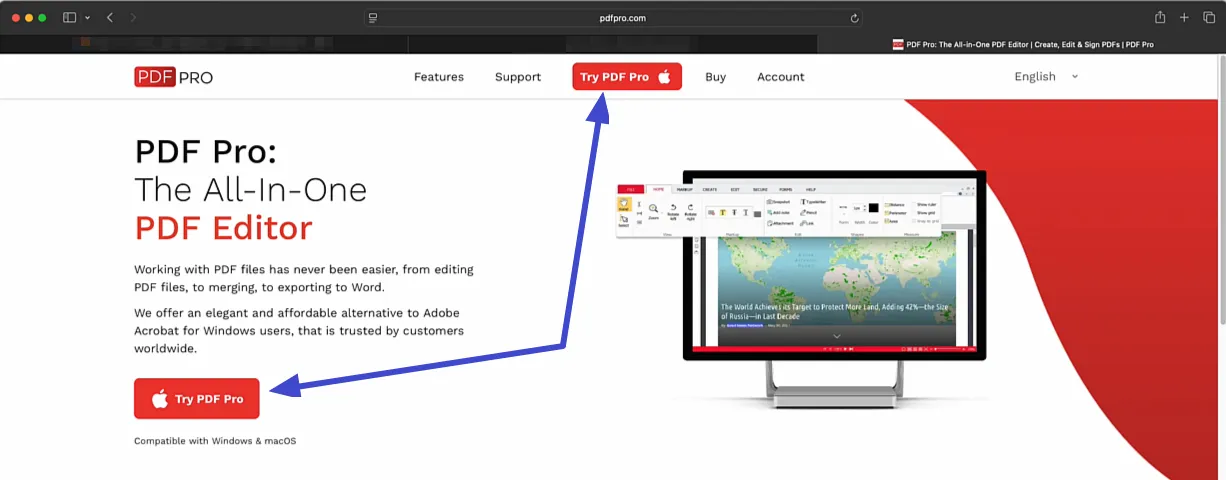
Visit the PDF Pro website at pdfpro.com and click on the Try PDF Pro button to start the PDF Pro Trial process. Either button will start the process.
Step 2: Enter your Email
NOTE: Email activation MUST be completed using your DESKTOP EMAIL APP. Activation will not work if done on a mobile device.
Enter your email address and click Download Free Trial.
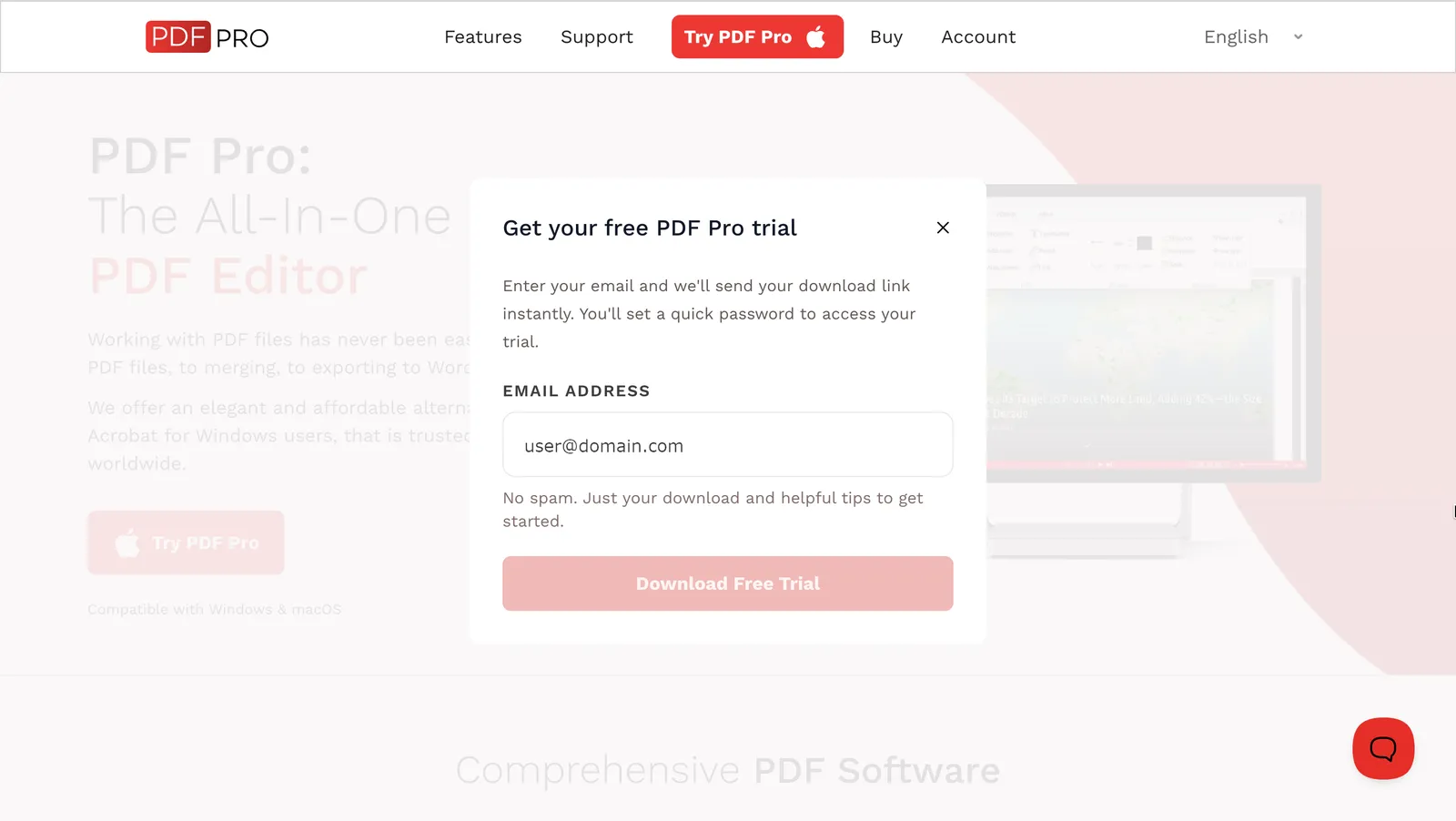
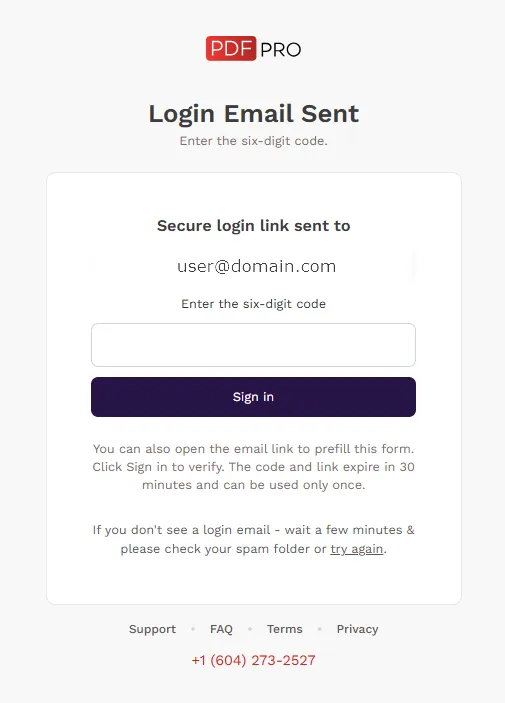
The Login Email Sent screen opens. Keep it open: you will enter a six-digit code here.
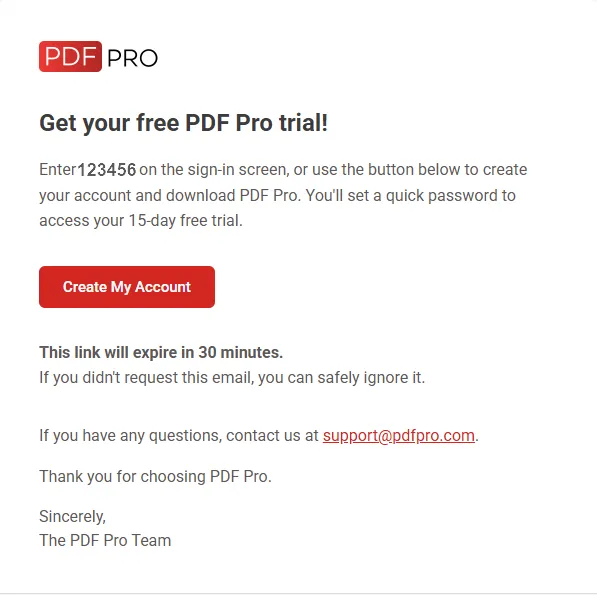
The email you receive will look like this. It contains your six-digit code and a Create My Account button. The code and the link expire in 30 minutes and can be used only once.
Enter the six-digit code on the Login Email Sent screen and click Sign in.
Enter the six-digit code
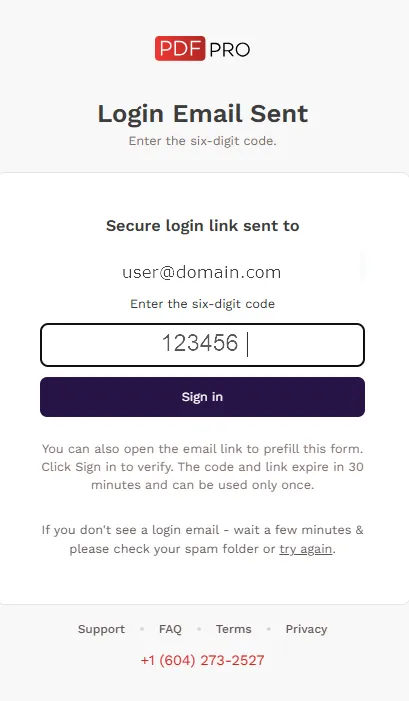
Or click Create My Account in the email. The Sign in to PDF Pro screen opens with the code already filled in. Click Sign in.
Sign in from the email link
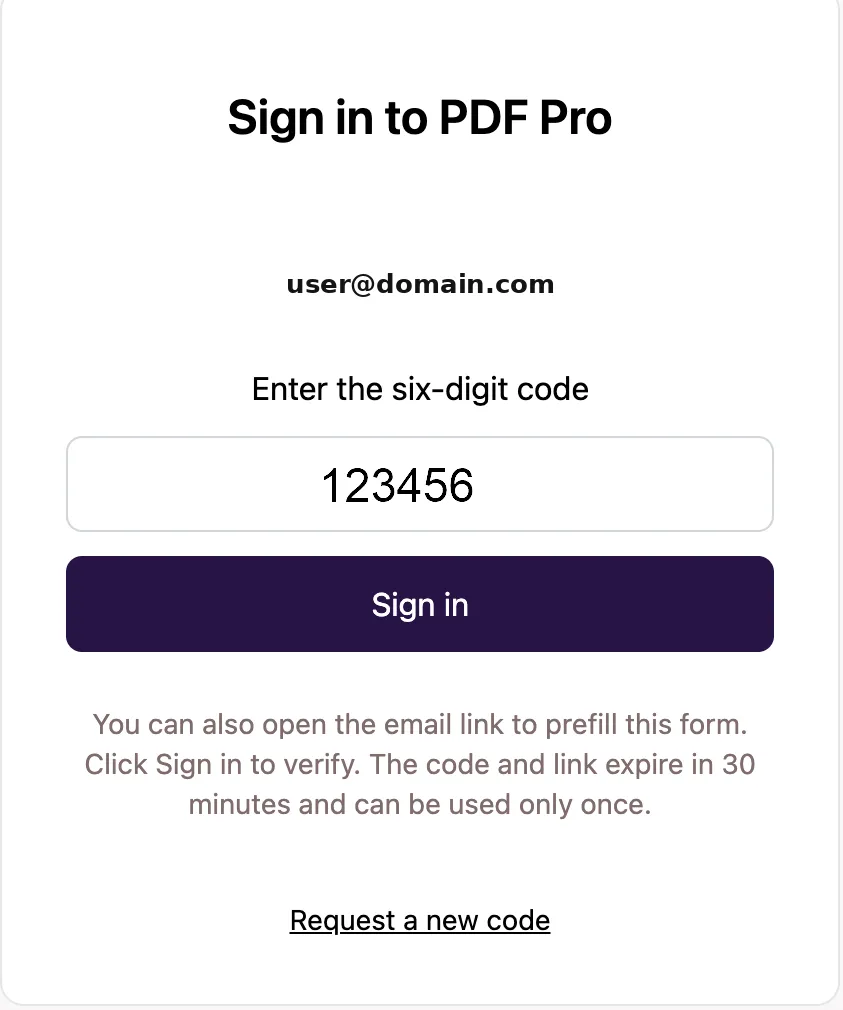
If you don’t receive the email, wait a few minutes and check your spam folder, or click try again (or Request a new code) to get a new one.
Step 3: Account Type Selection
Choose the type of account that best fits your needs: Personal or Business. Continue stays greyed out until you select one.
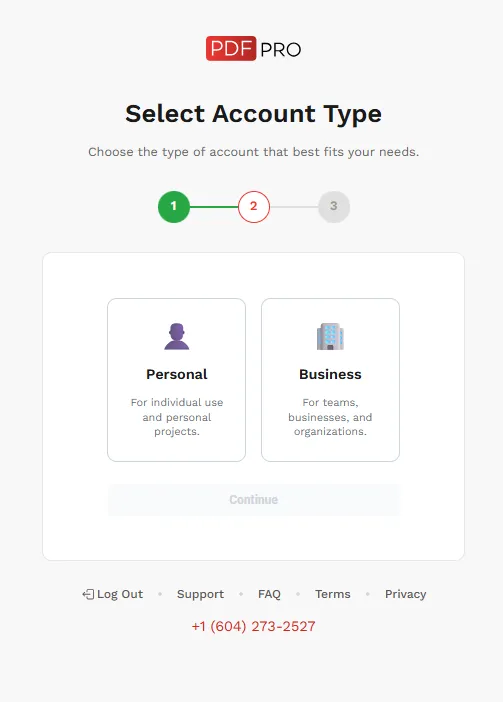
Personal
For individual use and personal projects. The trial is for one user.
Select the Personal box and click Continue.
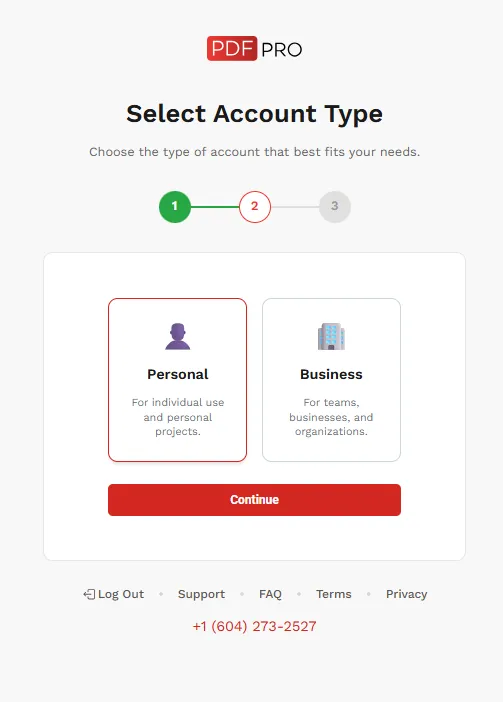
Business
For teams, businesses, and organizations. The Business trial includes 25 seats, so you can invite colleagues to try PDF Pro during the trial. Choose this option if you plan to buy more than one seat after the trial, as it makes multi-user setup and management easier.
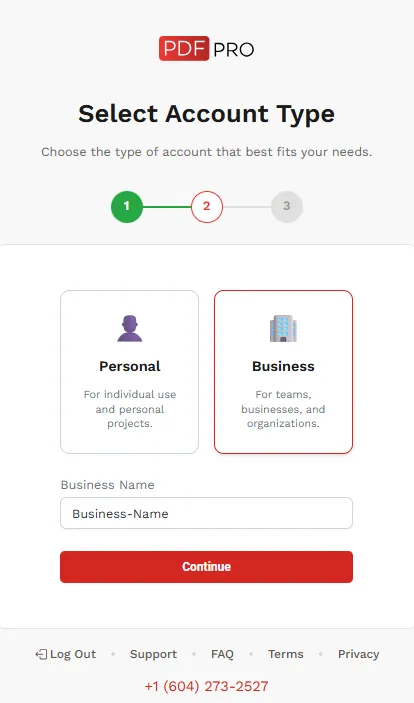
Select the Business box. A Business Name field appears.
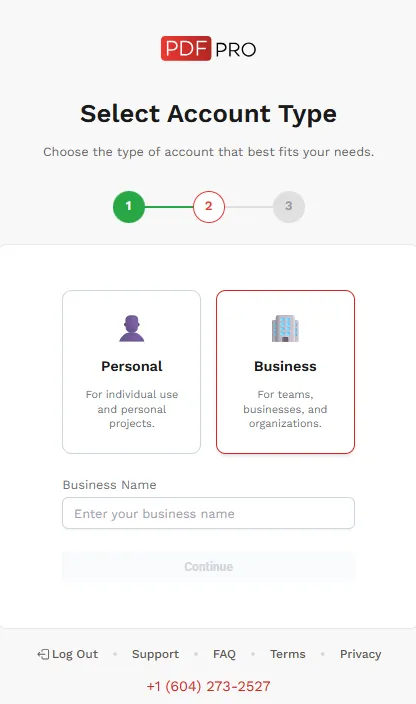
Enter the name of your business and click Continue.
Step 4: Set Password
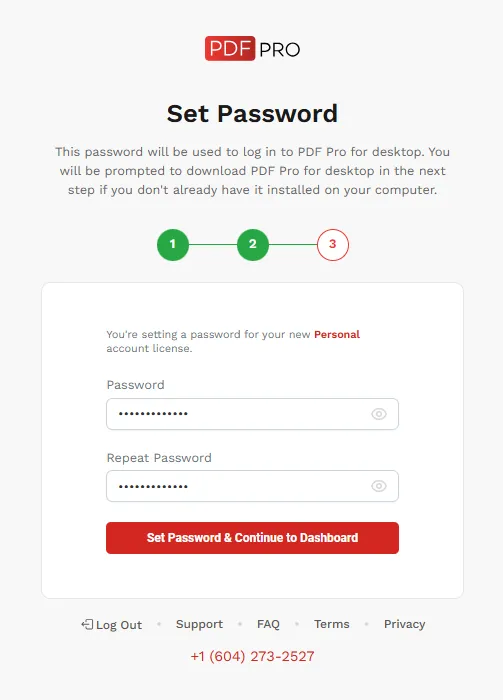
This password will be used to log in to PDF Pro for the desktop. The screen shows which account type you chose (Personal or Business). Enter the password twice and click Set Password & Continue to Dashboard.
Step 5: Download the Installer
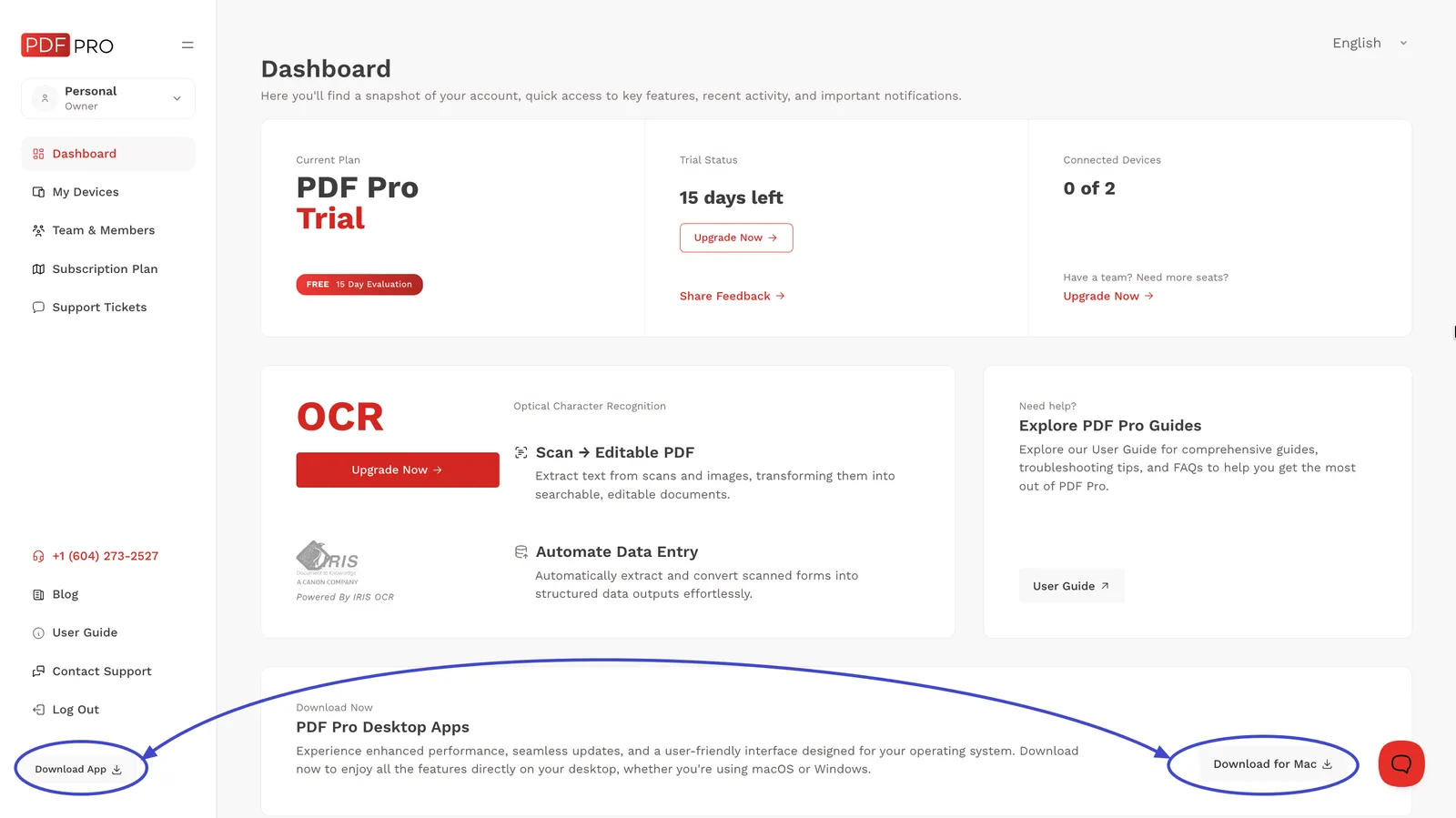
Your Dashboard opens with a Welcome to PDF Pro! message. Click Download for Mac to download the installer.
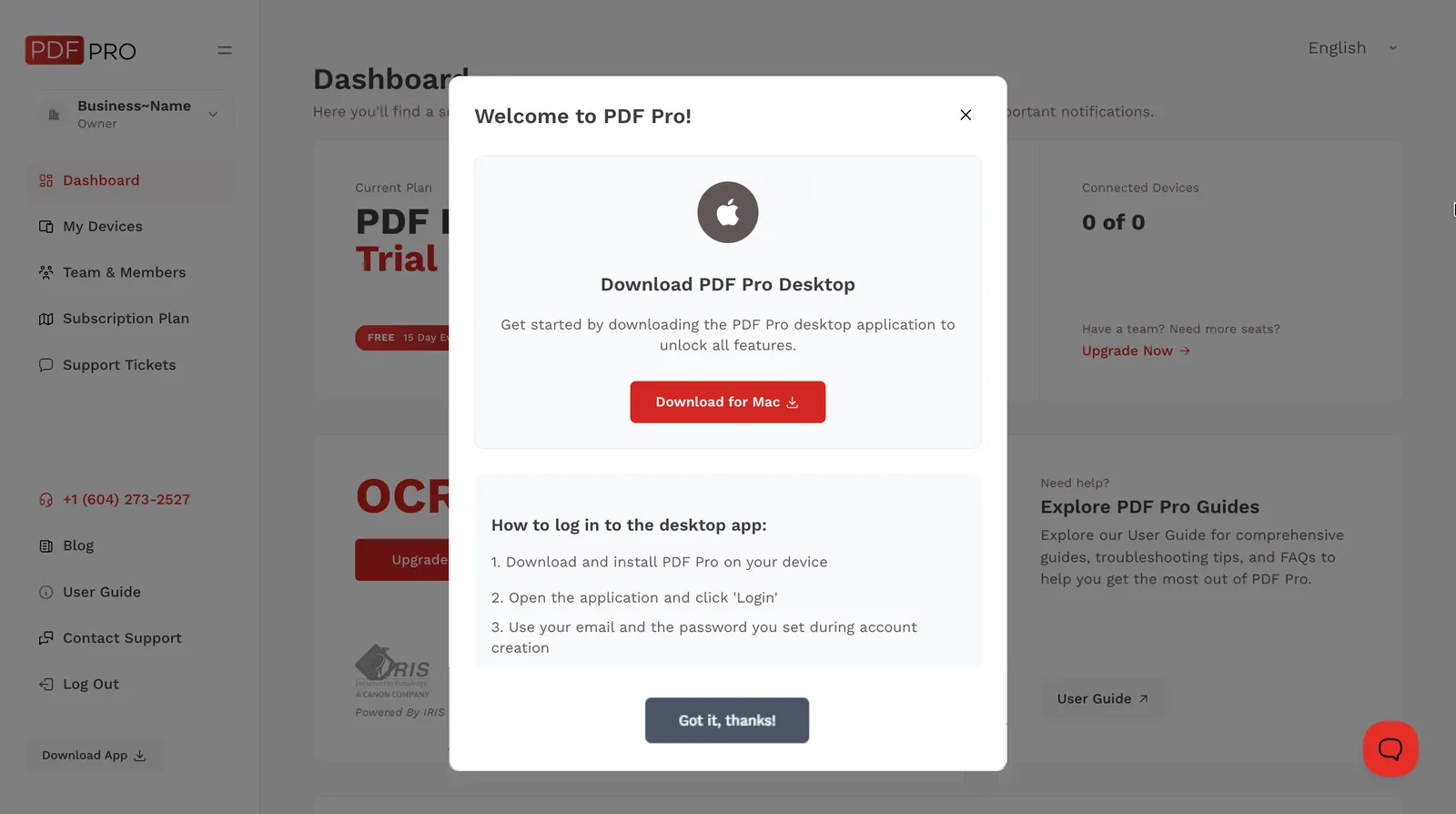
If you close the pop-up message, do not worry. You can also download the installer from the Dashboard: click Download for Mac in the PDF Pro Desktop Apps box, or Download App at the bottom of the left menu.
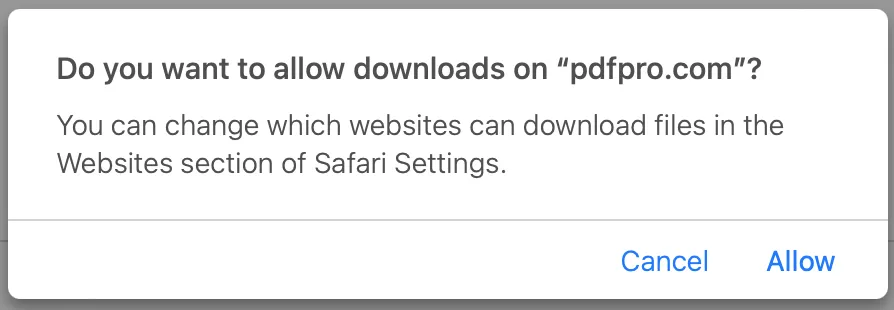
Permission may be required to download the installer. Select Allow to proceed.
Step 6: Install PDF Pro
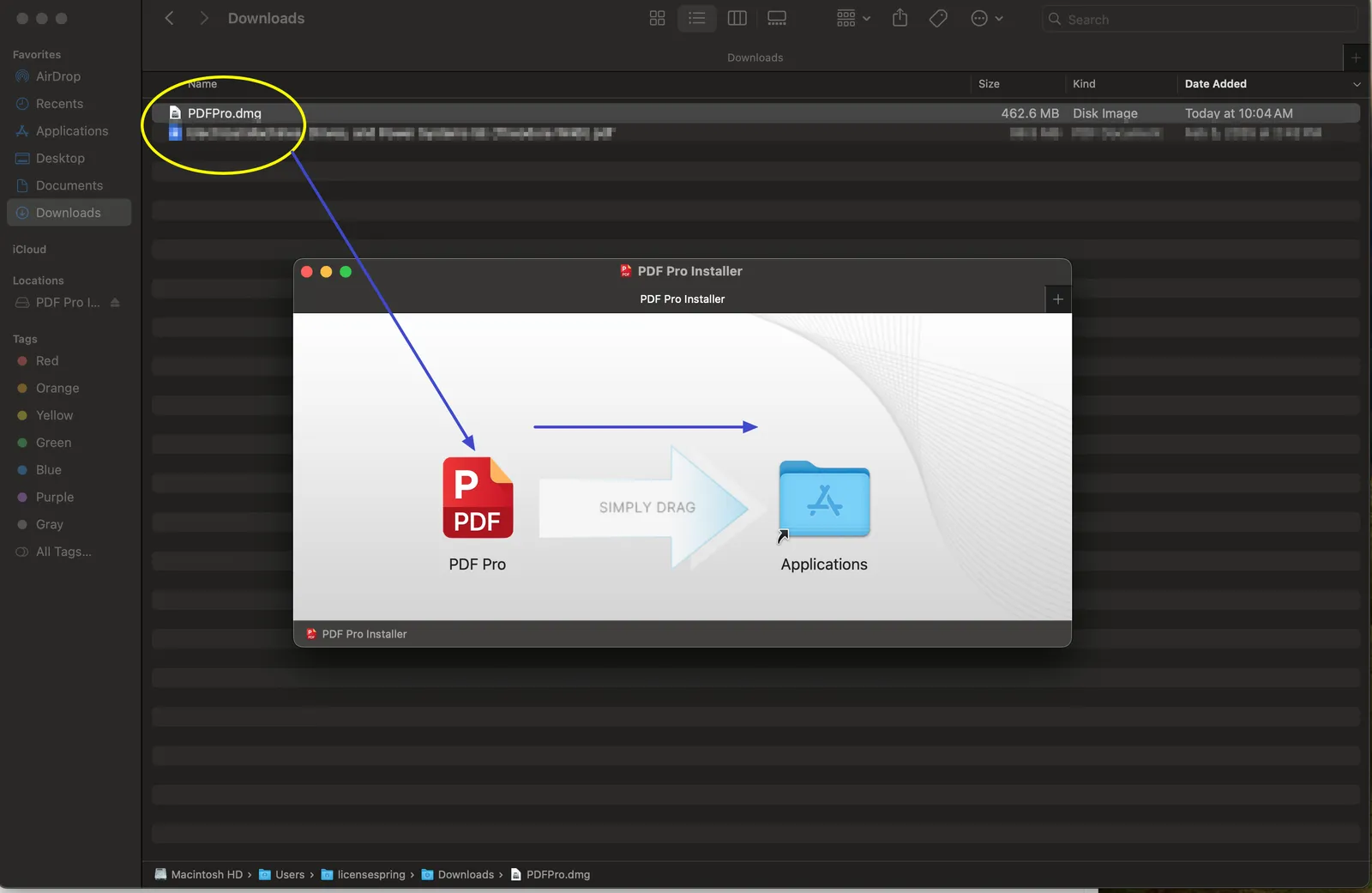
Once the download is complete, open your Downloads folder and locate the file named PDFPro.dmg.
Double-click PDFPro.dmg to open the installer window. In the window that appears, drag the PDF Pro icon into the Applications folder.
Open Finder, go to Applications, and double-click PDF Pro to start the app.
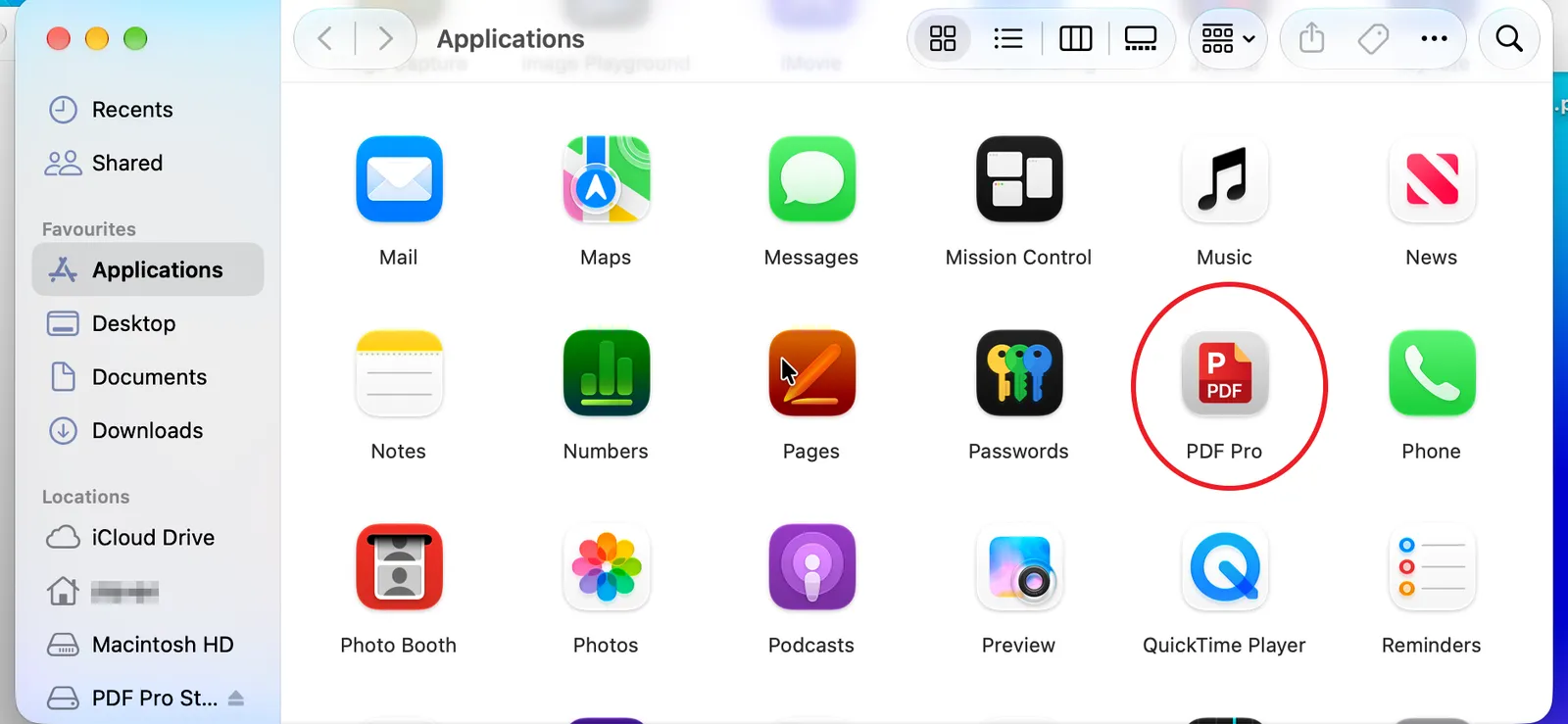
If your Finder shows a list, PDF Pro appears in alphabetical order.
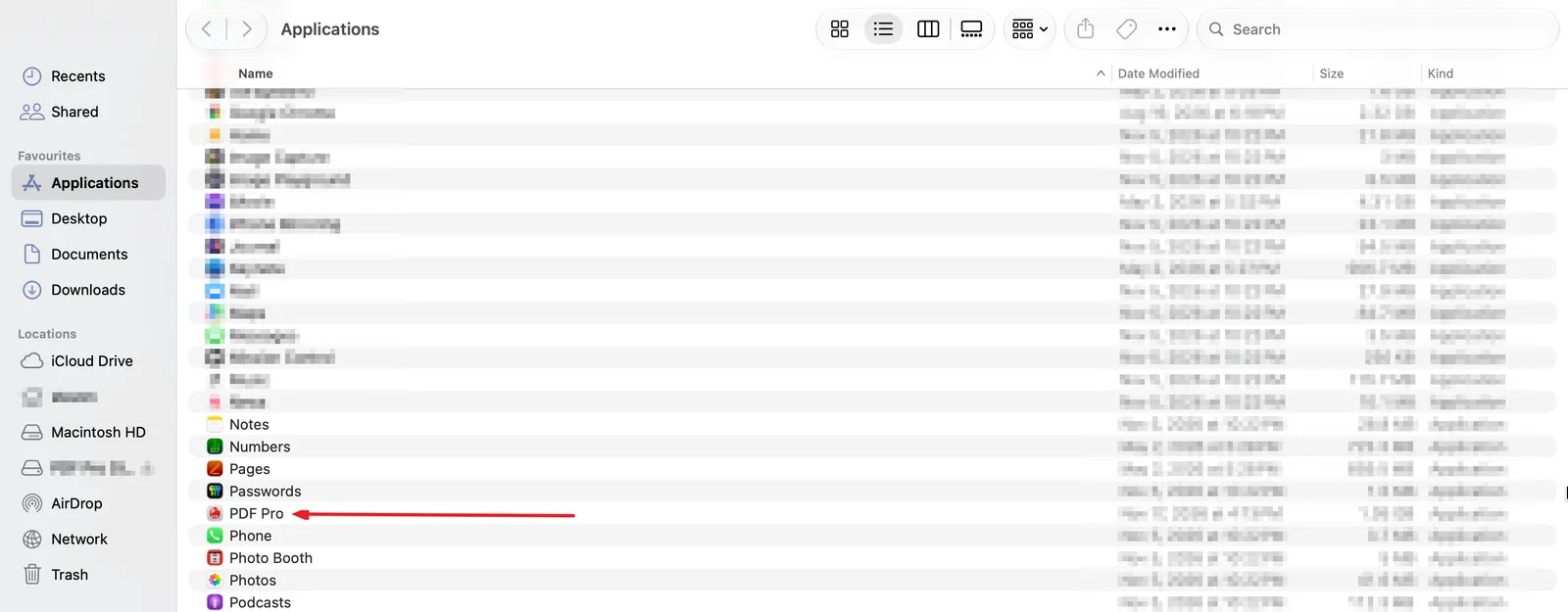
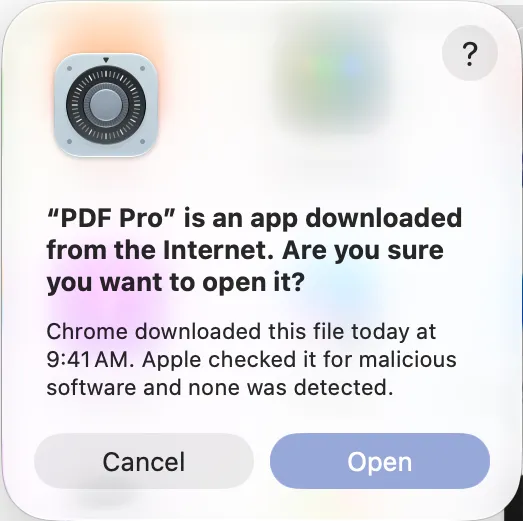
The first time you open it, macOS shows a warning that PDF Pro was downloaded from the internet. Select Open to continue.
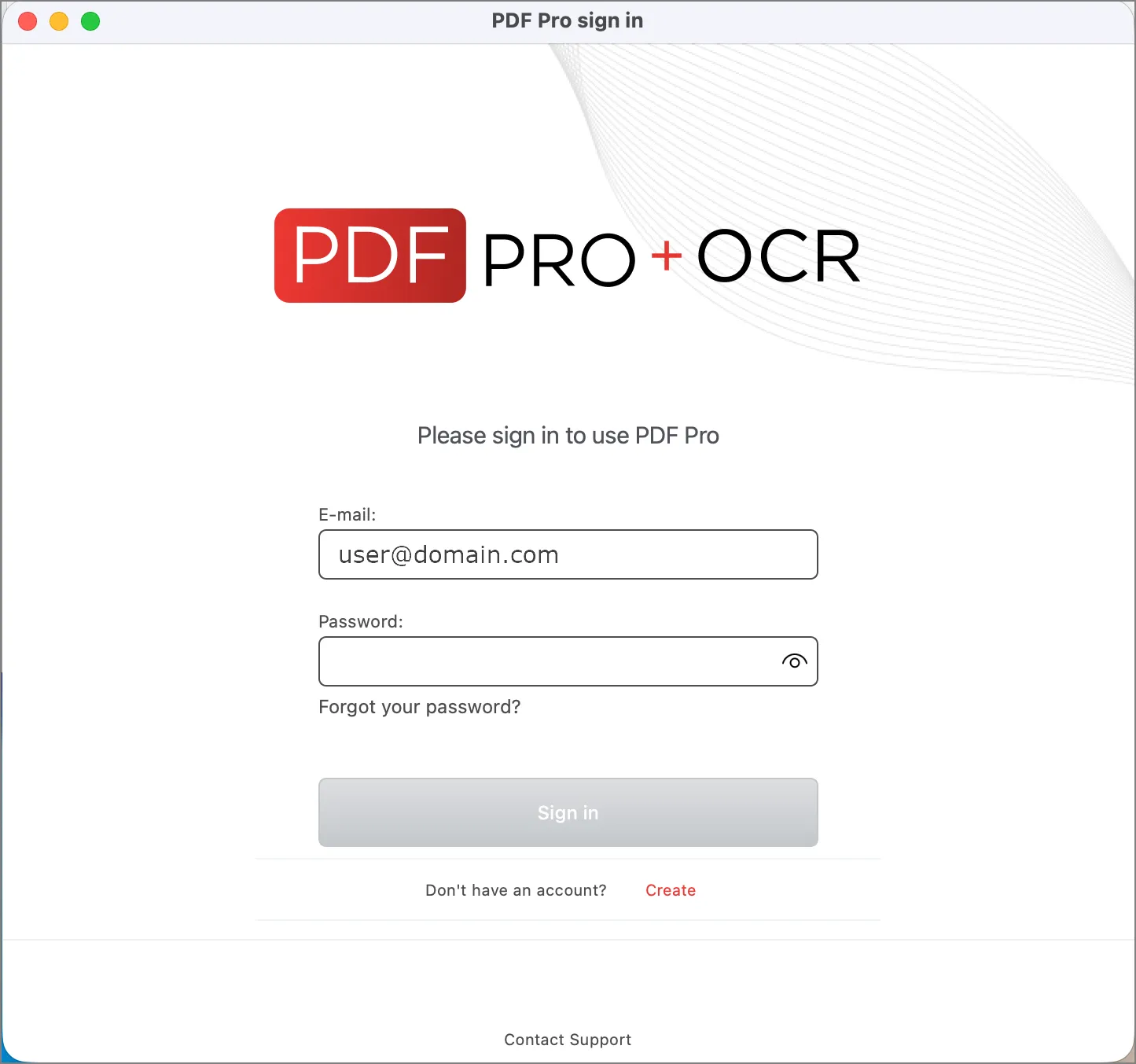
The PDF Pro sign in screen appears.
Step 7: Sign In to Start
To start the trial, sign in with your email and the password you set in Step 4, then click Sign in.
The program opens with a screen to make a choice. To continue with the trial, select Continue trial.
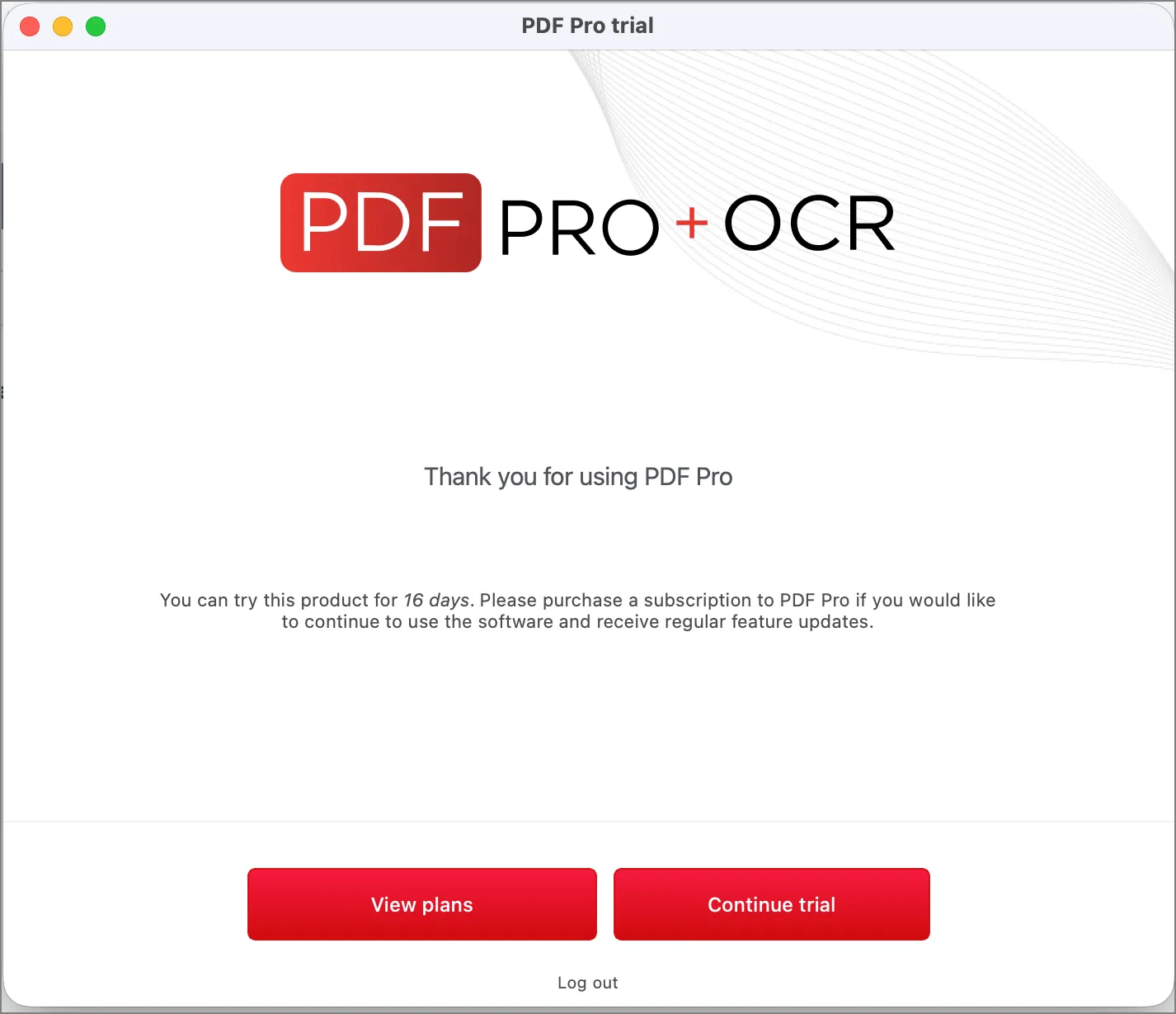
Welcome to PDF Pro. The title bar and the top right corner show how many days are left in your trial.
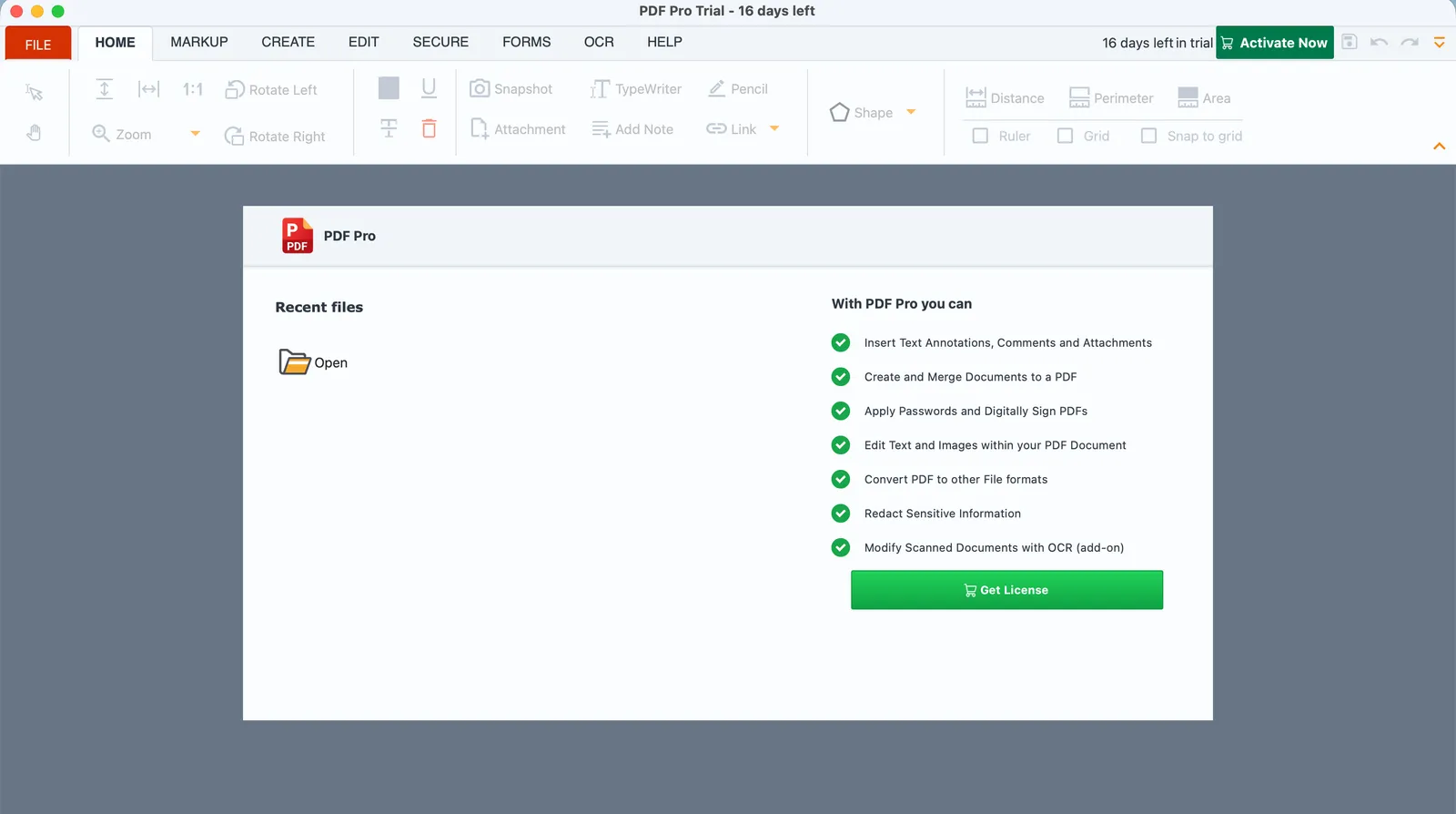
If you encounter the following prompt on macOS when working with PDF Pro:
“PDF Pro” would like to access data from other apps. Keeping app data separate makes it easier to manage your privacy and security.
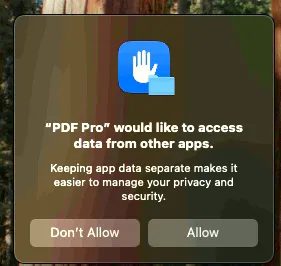
You can resolve this by granting the app Full Disk Access: System Settings → Privacy & Security → Full Disk Access → enable it for PDF Pro. After that, the message should no longer appear.
The trial includes all available tools and functionality. If you decide not to purchase PDF Pro after the 15-day trial, the trial will expire and the software will no longer work. You can then simply uninstall the application from your computer.
Your trial in the Dashboard
You can check your trial at any time in your online Dashboard. Subscription Plan shows the days left in your trial and an Upgrade Now button.
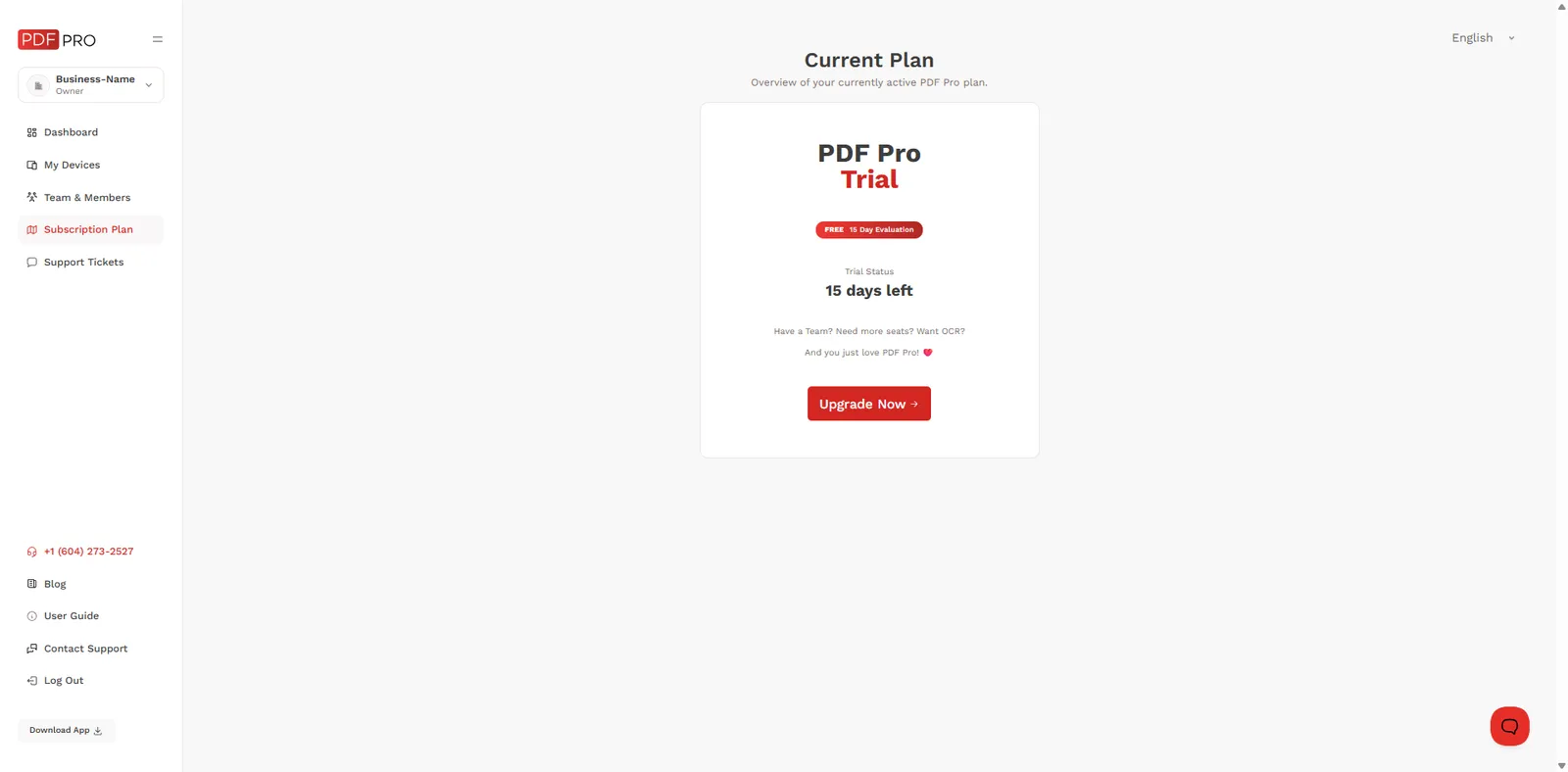
Personal trial
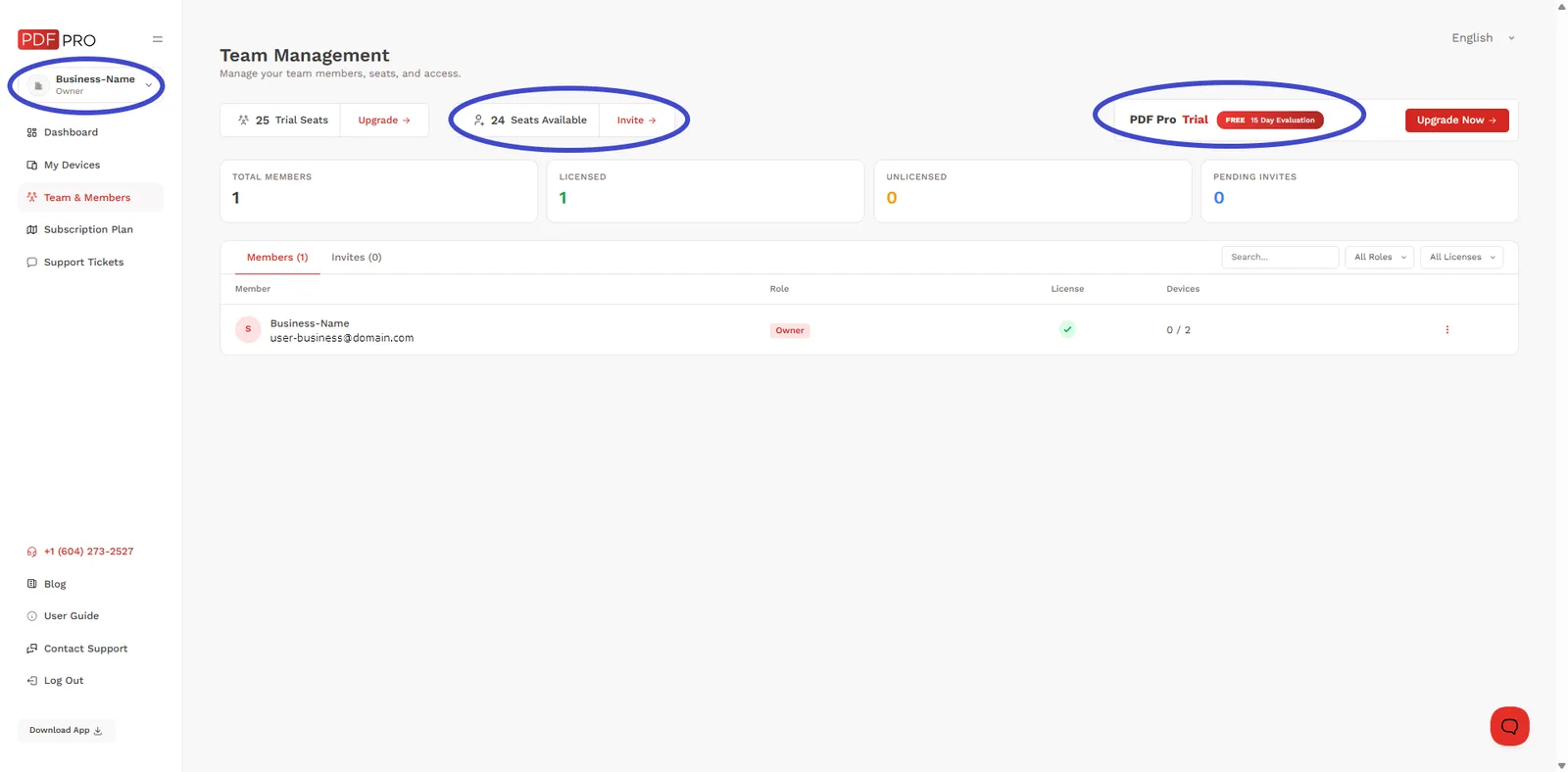
In Team & Members, a Personal trial shows 1 Trial Seat, for you.
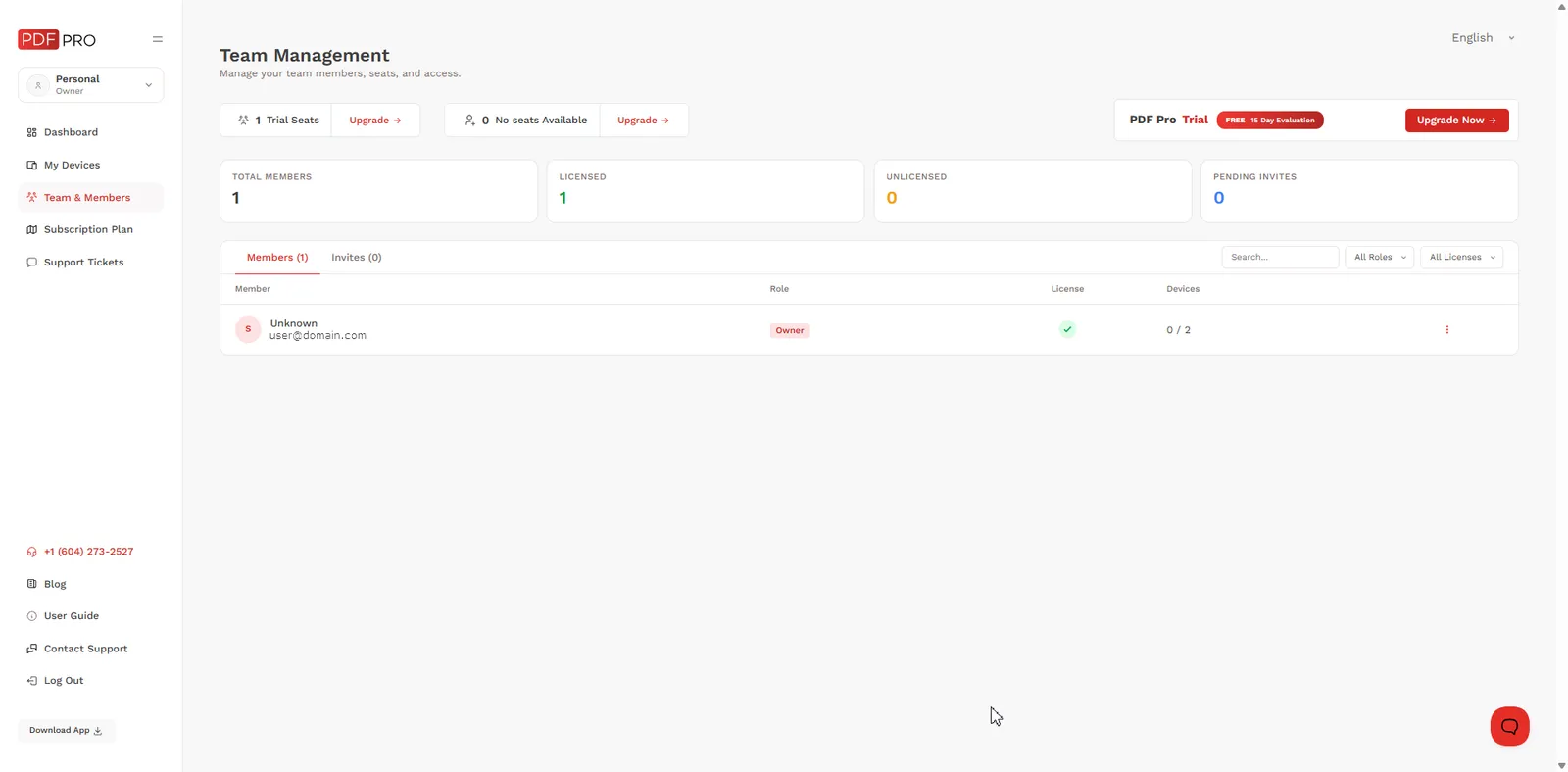
Business trial - 25 seats
A Business trial comes with 25 Trial Seats. Your business name appears at the top of the left menu, and you use one seat yourself. In this example, 24 Seats Available are ready for your team. Click Invite to add users so they can try PDF Pro too.
For more on managing your plan, seats and team members, see Subscription Management.