Shapes - lines and arrows
Drawing lines and shapes
You can add arrows, lines, rectangles, clouds and ellipses to a PDF. Each has its own settings for color, thickness, transparency, and stroke style.
To draw a straight line in PDF Pro:
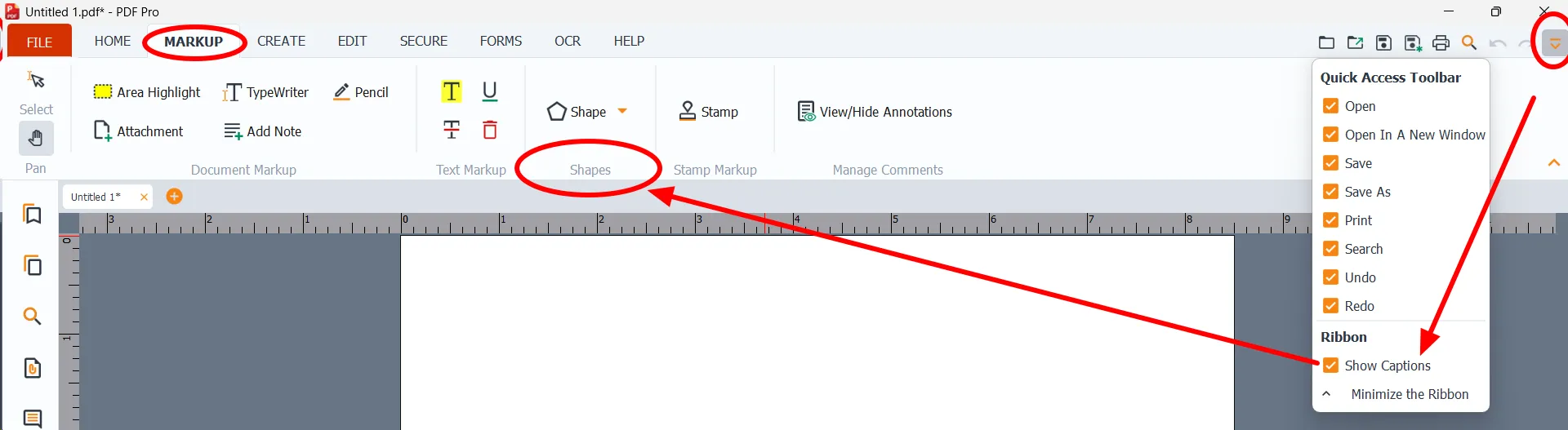
- Open PDF Pro, and find the Shapes section which can be found in two locations: in the Markup tab and the Home tab.


If Show Captions is turned on, the tools appear under the Shapes caption
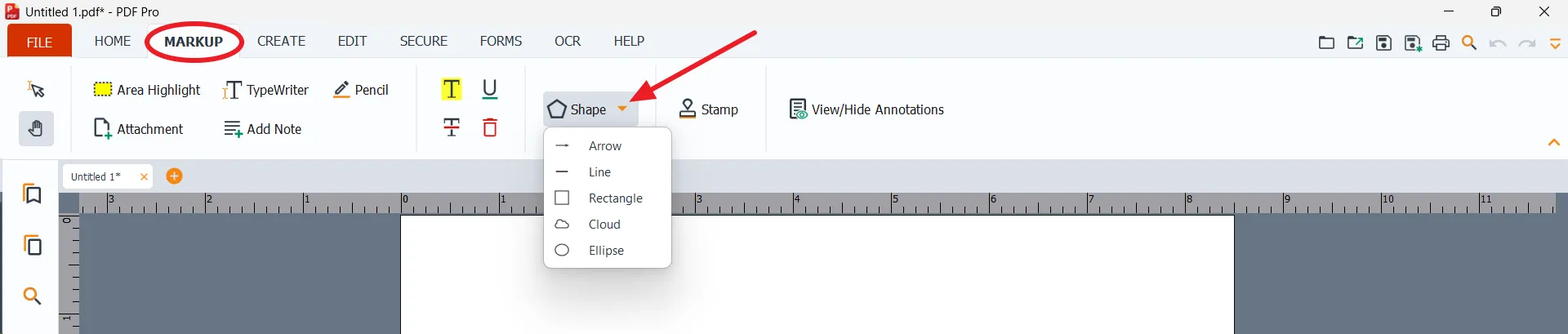
- Click the small triangle ▼ next to Shape to open the dropdown menu, and select the type of shape you want: Line, Arrow, Rectangle, Ellipse, or Cloud. The Shape button changes to show the name of the shape you selected.
- The settings panel for that shape opens on the right side of the window (for example, Line Settings). You can change the settings before you draw.
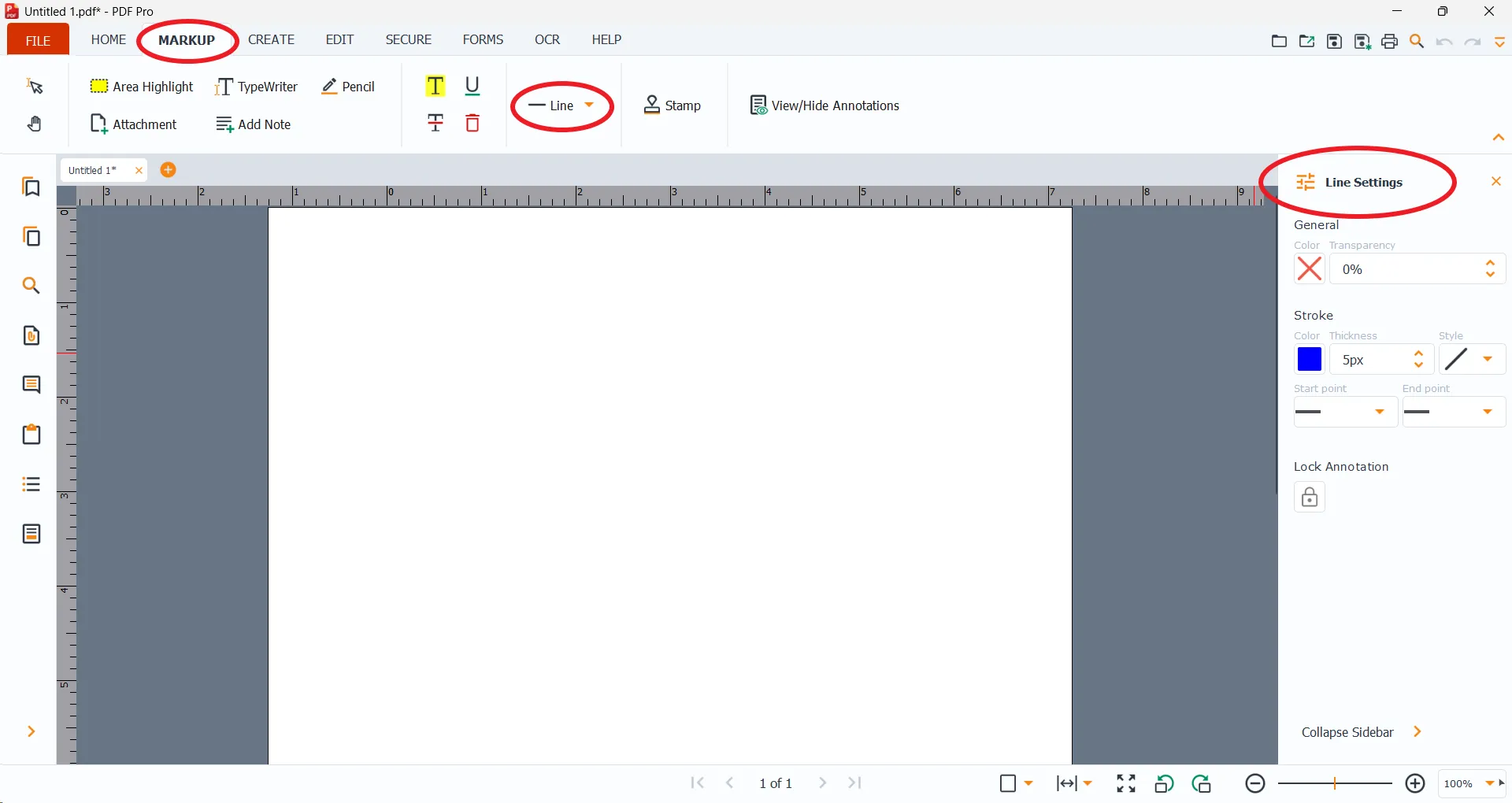
Left-click and hold where you want the line to start. Drag to where you want it to end, then release the mouse button.

NOTE: This is the same for any of the shapes (arrows, lines, rectangles, clouds and ellipses).
Shape settings
Each shape's settings panel is organized in sections:
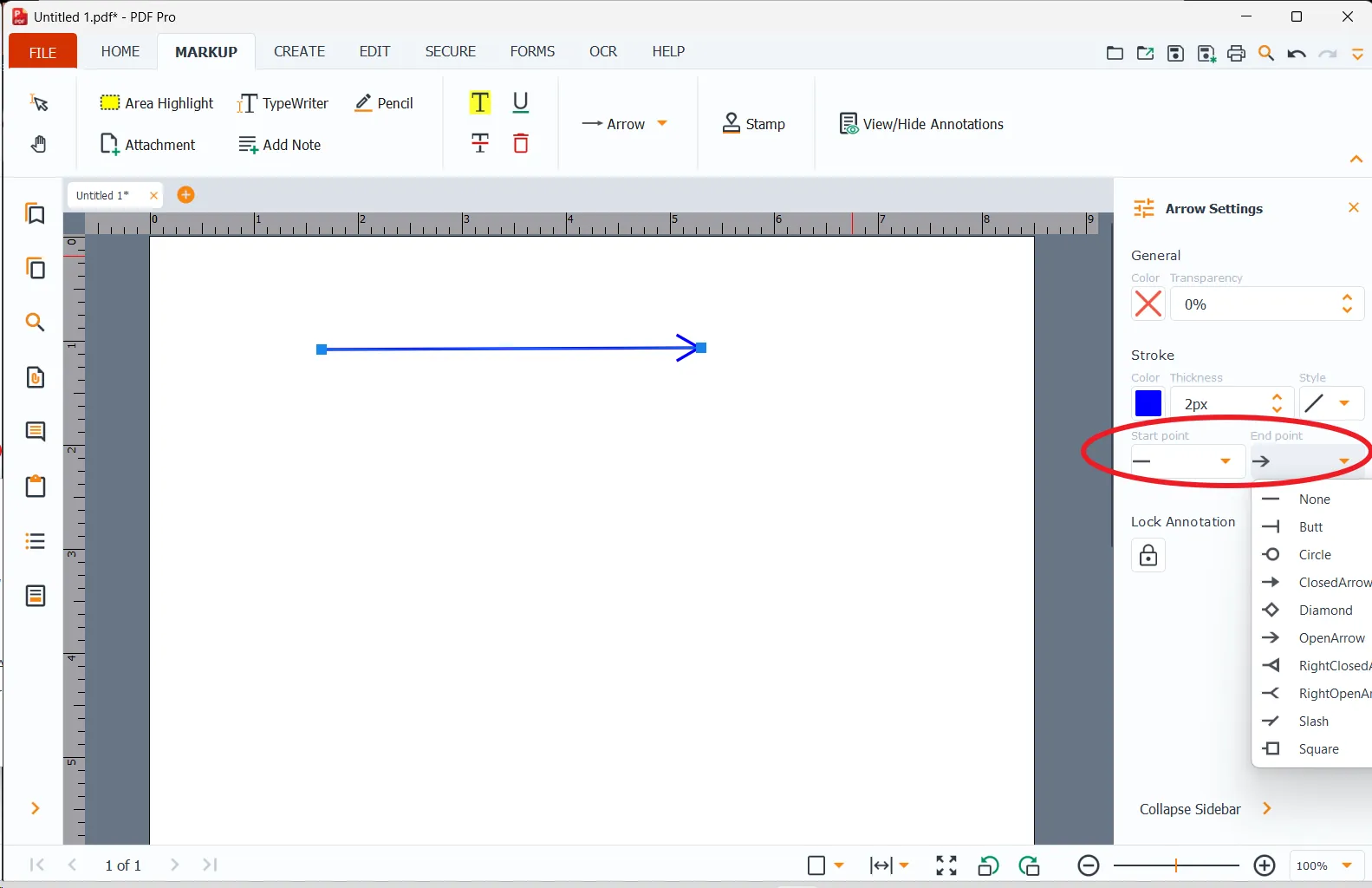
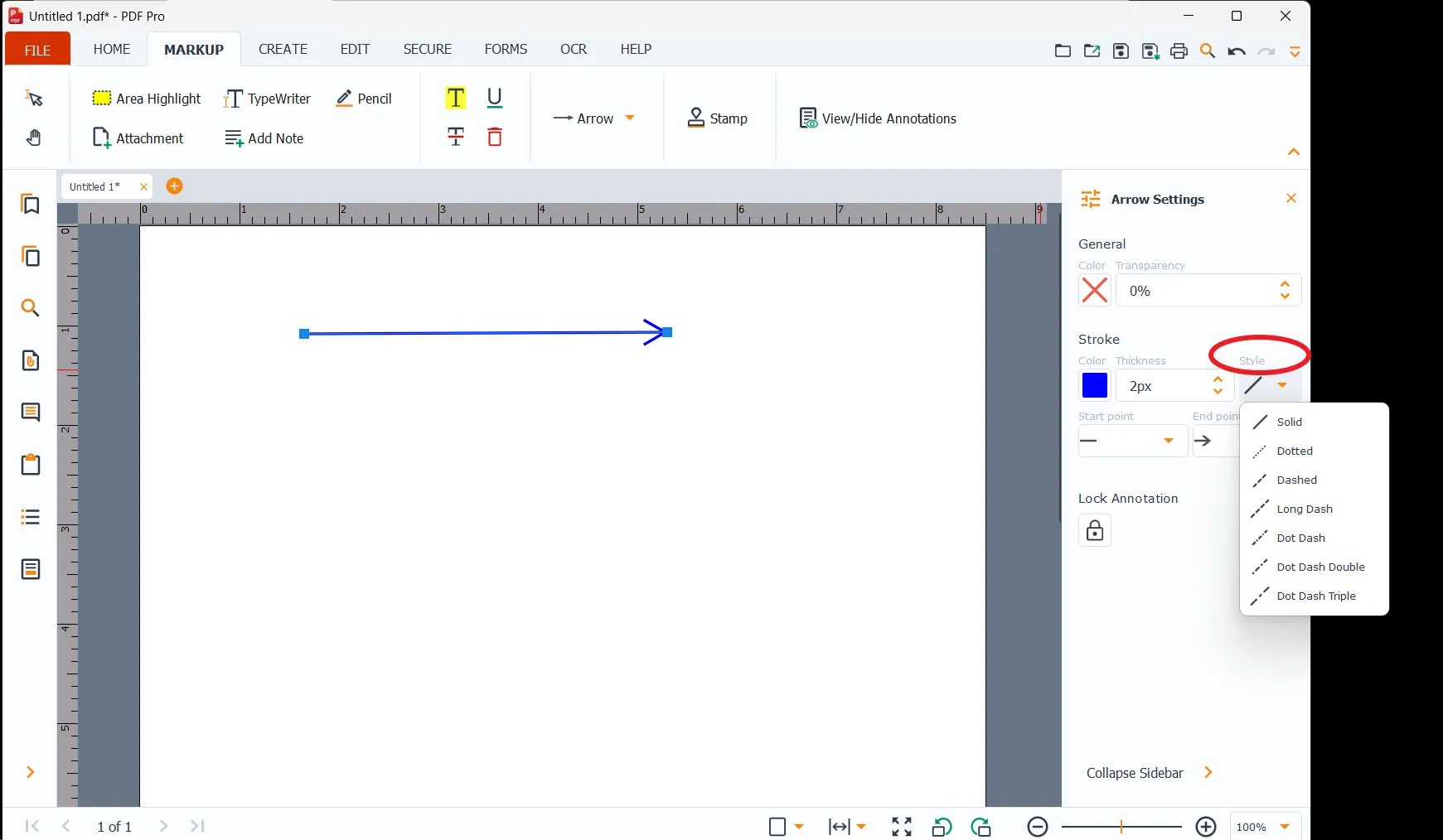
General: Color (the fill color) and Opacity. Lower the opacity to let the text underneath show through. Stroke: Color, Thickness, and Style of the border. Start point and End point (Line and Arrow only): choose the symbol at each end of the line. Click the box and a menu appears. Lock Annotation: click the lock icon to prevent the shape from being moved or changed.
End points
Stroke Style
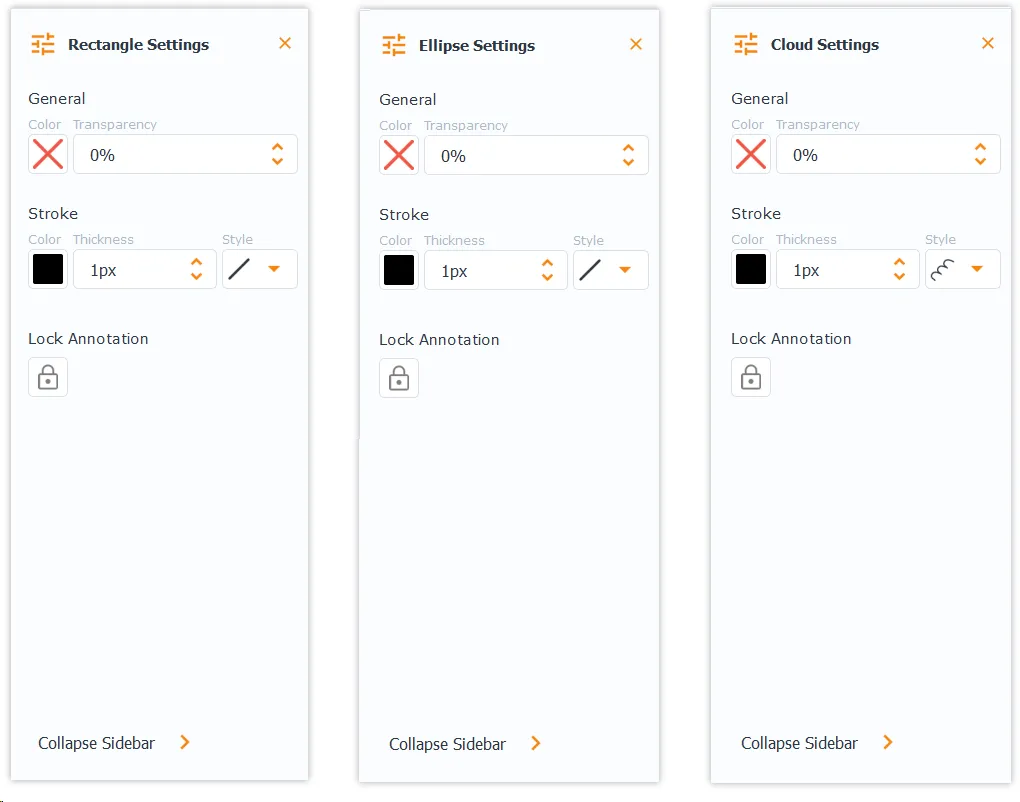
The Rectangle, Ellipse, and Cloud panels have the same sections, without Start point and End point.
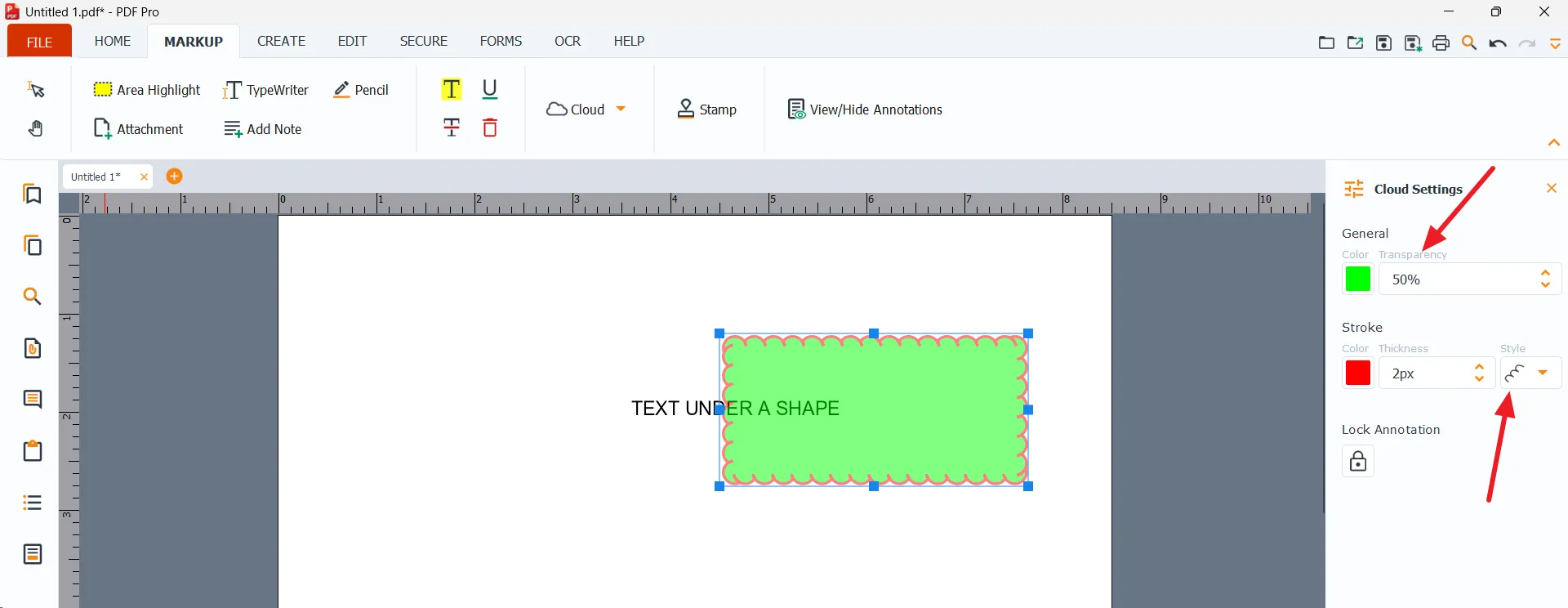
Example. In the example below, the opacity was lowered so the viewer can see the text under the rectangle, and a red, wiggly, 2 px border was created in Stroke.
Duplication of a shape.
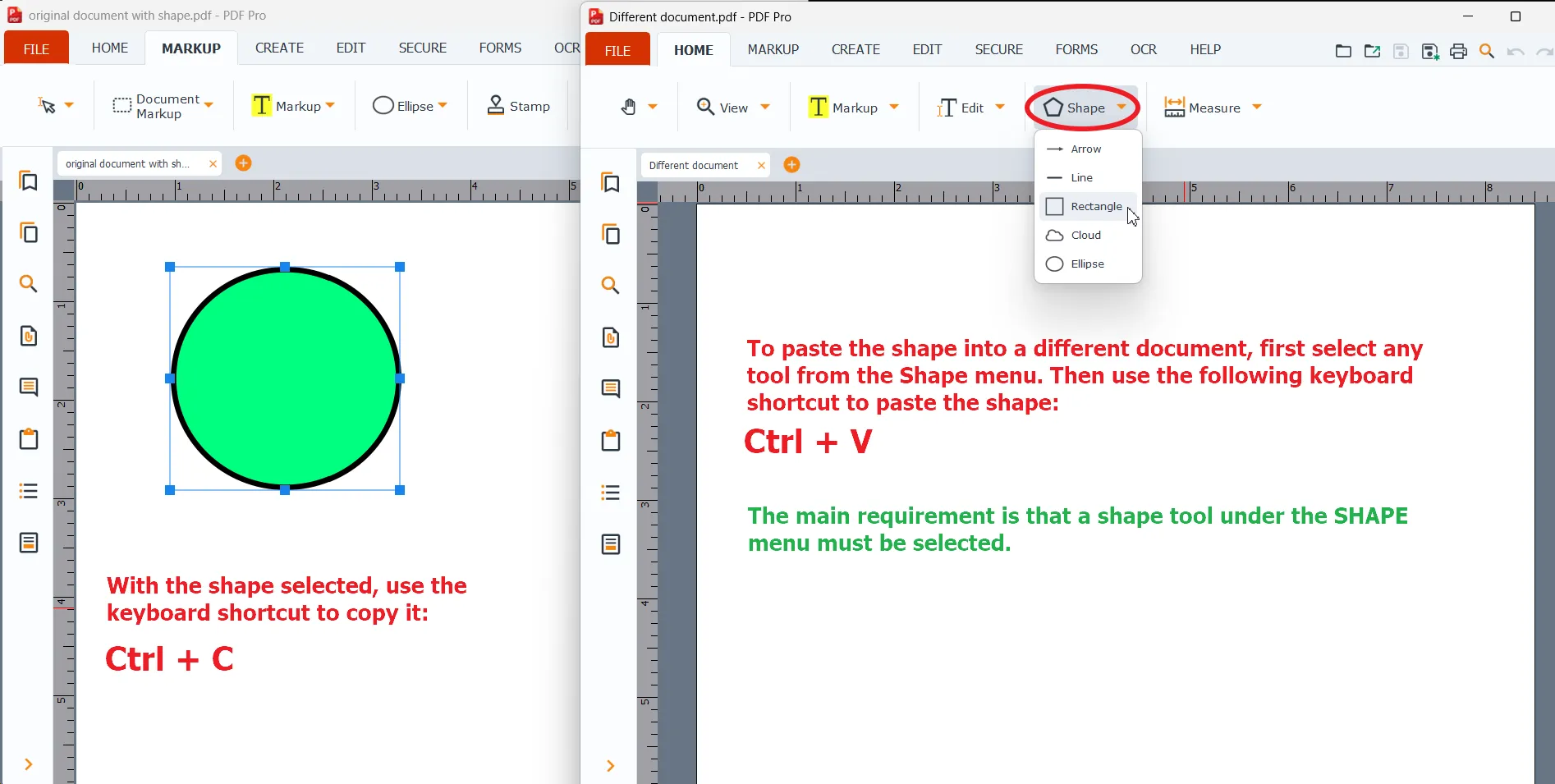
A shape can be duplicated either in the same document or in another document.
In the original document, wIth the shape selected, use the keyboard shortcut to copy it: Ctrl + C
To paste the shape into a different document, first select the Shape menu choice - and any tool will work, then Paste with Ctrl + V
The same method can also be used to place the shape within the original document, either on the same page or on a different page.