Date, Time or Time Zone Error
If PDF Pro says your computer's date, time or time zone is not set correctly, turn on automatic time and time zone in Windows, then sync the clock. Once they are correct, PDF Pro installs and activates normally. In some parts of Canada, a 2026 time zone change causes this error: see the CanadaCanada section below.
What you see
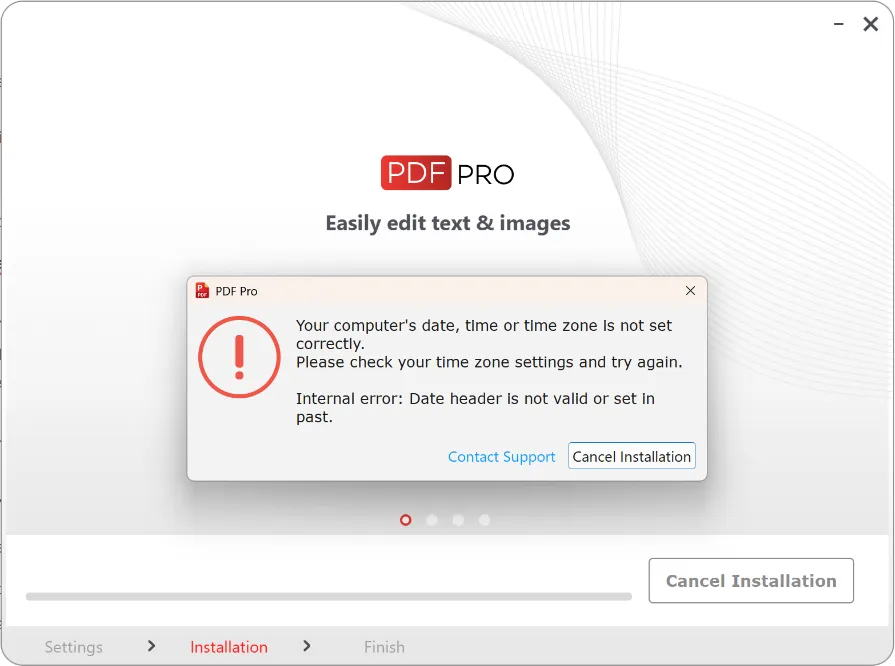
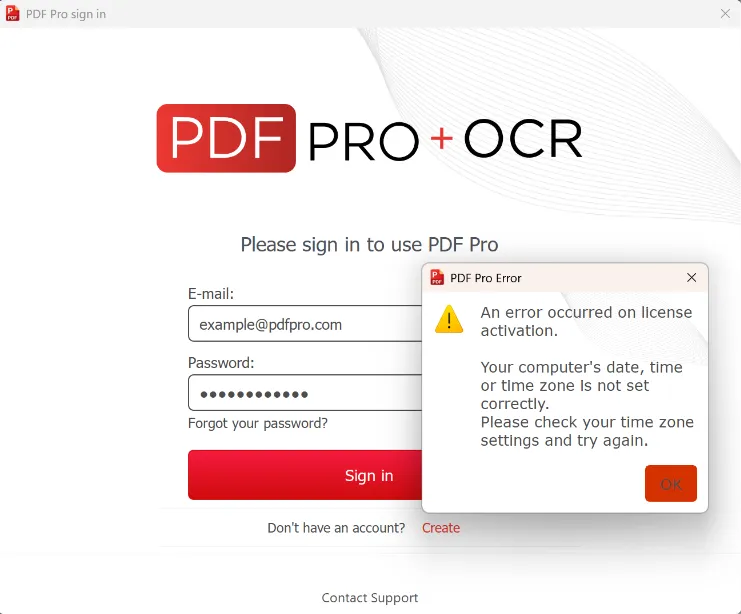
PDF Pro stops with this message when you install it or sign in:
Your computer's date, time or time zone is not set correctly. Please check your time zone settings and try again.
Older PDF Pro installers show "Server is temporarily unavailable" or "Date header is not valid or set in past" instead. The cause and the fix are the same.
The clock on your computer may look right. Windows can still have the wrong time zone, or a time that was changed by hand.
Why it happens
Our license server checks that your computer's time is correct. If the date, time or time zone is wrong, the check fails and PDF Pro can't install or activate.
This usually happens when the time was changed by hand, or Windows has the wrong time zone. The clock can look right while your computer is one hour off for online services. Other online services, such as calendars, can show wrong times too.
In parts of Canada, a 2026 time zone change is a common cause. See 'Canada: the 2026 time zone change'Canada: the 2026 time zone change' below.
Fix it
Follow these steps on Windows 10 and Windows 11.
- Open Settings > Time & language > Date & time.
- Turn on Set time automatically and Set time zone automatically.
- Click Sync now.
- Check that Time zone is correct for where you are and that the clock shows the correct local time.
- Install or sign in to PDF Pro again.
Don't set the time by hand. If you live in British Columbia, Alberta, Manitoba, the Northwest Territories or Northwestern Ontario, use the time zone from the table in the Canada section below.
If Set time zone automatically or Time zone is greyed out, turn on Location and try again. On Windows 10, open Settings > Privacy > Location. On Windows 11, open Settings > Privacy & security > Location.
Alternatively, you can set the time zone in Control Panel > Clock and Region > Date and Time.
For more help, see Microsoft's guide: Set time, date and time zone settings in Windows.
Canada: the 2026 time zone change
On 1 November 2026, British Columbia, Alberta, Manitoba, the Northwest Territories and Northwestern Ontario stopped changing their clocks. They now stay on summer time all year. Other regions of Canada are not affected.
Microsoft added the new time zones in a Windows update in October 2026. Computers without that update, mostly Windows 10, still moved the clock back one hour on 1 November. If you then set the clock forward by hand, the time looks right, but your computer is one hour off for online services. Our license server rejects that time.
Which time zone to choose
Find your region, then use the column for your version of Windows.
Your region | Windows 11, after the update | Windows 10 (temporary workaround) |
|---|---|---|
British Columbia | (UTC-07:00) Pacific Time (British Columbia) | (UTC-07:00) Yukon |
Alberta, Northwest Territories | (UTC-06:00) Mountain Time (Alberta) | (UTC-06:00) Saskatchewan |
Manitoba, Northwestern Ontario | (UTC-05:00) Manitoba | (UTC-05:00) Bogota, Lima, Quito |
The Windows 10 time zones have the same time as your region all year. Only their names are different.
Fix it on Windows 11
Install the latest Windows updates. Windows then sets the correct time zone for you.
- Open Settings > Windows Update, click Check for updates and install all available updates.
- Restart your computer.
- Open Settings > Time & language > Date & time.
- Make sure Set time zone automatically and Set time automatically are both on.
- Check that Time zone shows the new time zone for your region (see the table above) and that the clock shows the correct local time.
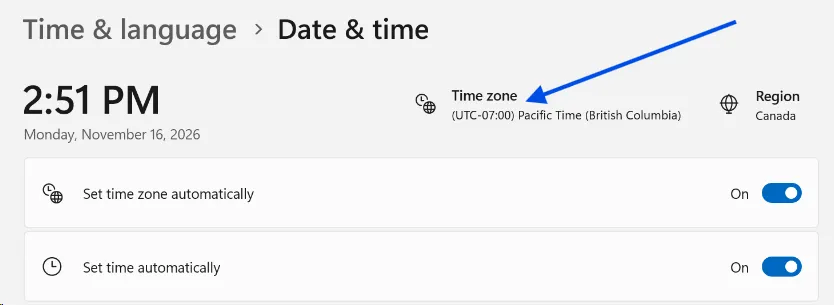
If the time zone is still wrong, or you can't install updates:
- Turn off Set time zone automatically.
- Click Time zone and choose the time zone for your region from the table. If the Windows 11 time zone isn't in the list, choose the one from the Windows 10 column.
- Keep Set time automatically on, then click Sync now. Don't set the time by hand.
Fix it on Windows 10
Most Windows 10 computers don't get Microsoft's time zone update. Choose the temporary time zone for your region instead. It keeps the correct time all year.
If you use Windows 10 Enterprise LTSC, install the latest Windows updates first: your edition gets the update, and you can follow the Windows 11 steps.
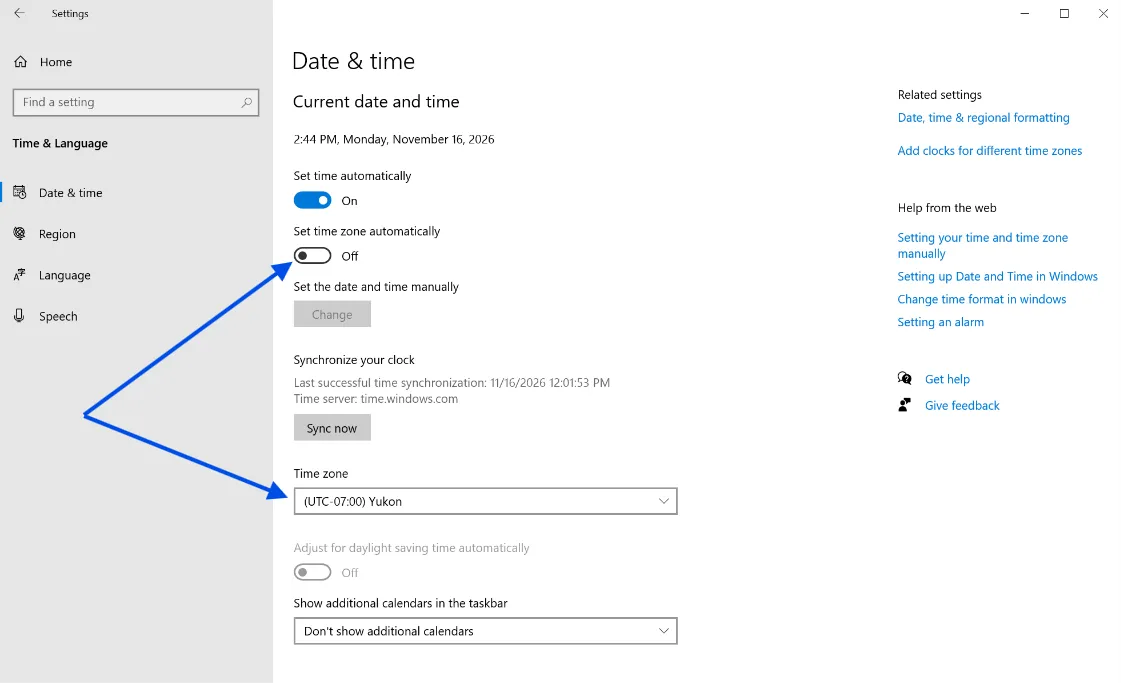
- Open Settings > Time & Language > Date & time.
- Turn off Set time zone automatically.
- Under Time zone, choose the Windows 10 time zone for your region from the table above. You can also use Control Panel, as described under 'Fix it'.
- Make sure Set time automatically is on, then click Sync now. This also undoes any time you set by hand. Check that the clock shows the correct local time.
When you move to Windows 11, switch to the new time zone for your region.
Still not working?
Once the date, time and time zone are correct, install or sign in to PDF Pro again. It should work normally.
If it still fails, check that:
- Set time automatically is on, and the time wasn't changed by hand.
- The time zone matches your region in the table above.
- The clock shows the correct local time.
If these settings are greyed out or keep changing back, your computer may be managed by your organization. Ask your IT team to correct the time zone.
Still stuck? Contact our support team and tell us your region and Windows version.
More information from Microsoft
- Alberta 2026 time zone update (also covers the Northwest Territories)